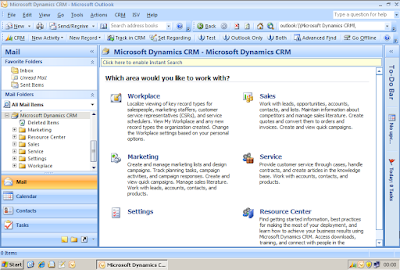
As you may know that Exchange Server isn't the only mail option in Microsoft Dynamics CRM v4.0, Furthermore in CRM 4.0, you can install Outlook client and CRM Server on the same box, it doesn't have limitation anymore. Plus, you don't have to have an Outlook profile setup before you install the Outlook client.
So, it's pretty easy now, let's start building a CRM 4.0 all-in-one-box VPC.
- Build and setup a Windows Server 2003 R2 with SQL Server 2005 VPC
- Install CRM 4.0 Server
- Install Outlook 2007
- Install CRM 4.0 Client for Outlook
During the installation, if you get a pre-check error message say:"Microsoft Dynamics CRM for Outlook cannot be installed on a computer where Microsoft Exchange Server versions prior to Exchange Server 2007 are installed." It does mean as it's displayed. But how about if you don’t have Exchange 2003 installed on that box? Well, in that case you may run 'regedit.exe', and go to [HKEY_LOCAL_MACHINE\SOFTWARE\Microsoft\], find the [Exchange] folder, export it & delete it. And then try the installation again.
- After the installation, open Outlook(if you don't have a Outlook profile setup yet, do it now), you will see a brand new toolbar, click it, go to 'Next', it will alert you to close Outlook, do it, and then click 'Next'
- On the next window, you may select either 'My company' or 'An online service provider', select yours, click 'Next'
- Fill out the CRM server URL, then click 'Next', it will check the system requirement, click 'Next' again when it's finished, and then it will run the installation process.
- After the installation, every time you open Outlook, it will initialize some tasks (you can see it from the CRM Toolbar), so just leave it to finish.


